> ## Documentation Index
> Fetch the complete documentation index at: https://pipedform.com/docs/llms.txt
> Use this file to discover all available pages before exploring further.
# Slack
Automatically send every form submission to a Slack channel, so your team gets notified the moment someone fills out your form - right where you already collaborate.
Once connected, PipedForm will post a new message to your chosen Slack channel for every submission, including the submission date and time, making it easy to stay on top of form activity without checking your email or dashboard.
This is available on the **Paid** plan.
## Setting Up Slack Integration
Follow these steps to connect your form to a Slack channel using an incoming webhook.
In your Slack workspace, create a new **Incoming Webhook** for the channel you want to receive submissions in, then copy the generated **Webhook URL**.
1. Go to your Slack workspace
2. Navigate to **Apps** or visit [https://api.slack.com/apps](https://api.slack.com/apps)
3. Click **Create New App**
4. Select **From scratch**
5. Give your app a name (e.g., "PipedForm Notifications") and select Workspace.
6. Click **Create App**
7. In your app settings, click **Incoming Webhooks** from the left sidebar
8. Toggle **Activate Incoming Webhooks** to **On**
9. Scroll down and click **Add New Webhook to Workspace**
10. Select the channel where you want to receive notifications
11. Click **Allow**
12. Copy **Webhook URL**
[ ](https://api.slack.com/apps)
Go to **Integrations** page, **Add Integration** > **Slack**. Enter **Name** and **Webhook URL**, then **Save**.
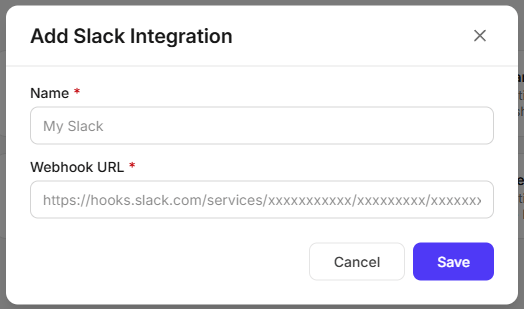 Go to your form's **Integrations** page, click **Slack Integration**.
## Data Sent to Slack
For every submission, PipedForm posts a message to your Slack channel containing:
* All submitted form field data
* `submittedAt` - the date and time the submission was received
**Notes:**
* Each Slack integration is tied to a single channel - to send submissions to multiple channels, create a separate incoming webhook and integration for each.
* If the webhook URL is invalid or has been revoked from Slack, submissions will fail to deliver to that channel.
Go to your form's **Integrations** page, click **Slack Integration**.
## Data Sent to Slack
For every submission, PipedForm posts a message to your Slack channel containing:
* All submitted form field data
* `submittedAt` - the date and time the submission was received
**Notes:**
* Each Slack integration is tied to a single channel - to send submissions to multiple channels, create a separate incoming webhook and integration for each.
* If the webhook URL is invalid or has been revoked from Slack, submissions will fail to deliver to that channel.