

This is available on the Paid plan.
Setting Up Google Sheets Integration
Follow these steps to connect your form to a Google Sheet.Create a Spreadsheet for Your Form
Create a Google Sheets spreadsheet that you’ll use to store submissions from this form.
Connect Your Google Account
Go to Integrations page, Add Integration > Google Sheets. You’ll be redirected to Google to authorize PipedForm to access your spreadsheets.
Select Your Spreadsheet and Sheet
Once connected, open your form’s Integration settings and select the Google Sheets integration you just added. A modal will appear where you can choose the spreadsheet you created, and enter the name of the sheet (tab) you want to use.The sheet name you enter must match the sheet (tab) name in your spreadsheet exactly, including capitalization.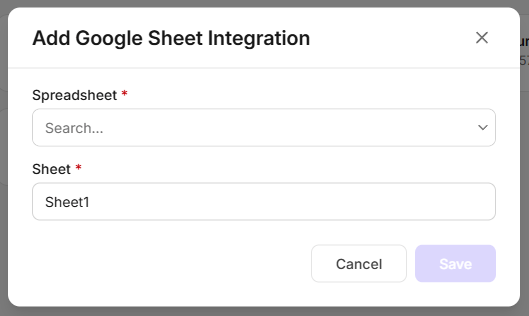
Data Sent to Google Sheets
For every submission, PipedForm appends a new row containing:- All submitted form field data
submittedAt- the date and time the submission was received