

This is available on the Paid plan.
Setting Up Slack Integration
Follow these steps to connect your form to a Slack channel using an incoming webhook.Create a Slack Incoming Webhook
In your Slack workspace, create a new Incoming Webhook for the channel you want to receive submissions in, then copy the generated Webhook URL.
- Go to your Slack workspace
- Navigate to Apps or visit https://api.slack.com/apps
- Click Create New App
- Select From scratch
- Give your app a name (e.g., “PipedForm Notifications”) and select Workspace.
- Click Create App
- In your app settings, click Incoming Webhooks from the left sidebar
- Toggle Activate Incoming Webhooks to On
- Scroll down and click Add New Webhook to Workspace
- Select the channel where you want to receive notifications
- Click Allow
- Copy Webhook URL
Add Slack Integration
Go to Integrations page, Add Integration > Slack. Enter Name and Webhook URL, then Save.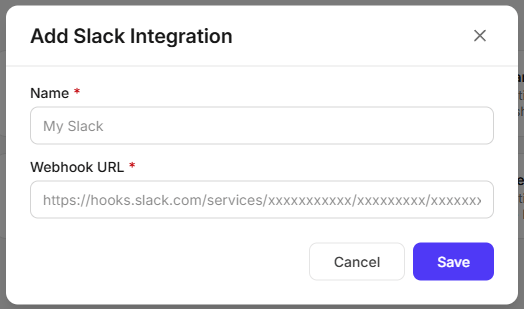
Data Sent to Slack
For every submission, PipedForm posts a message to your Slack channel containing:- All submitted form field data
submittedAt- the date and time the submission was received